Manual
Club settings
Club settings is where you manage the club, your user account, payments, announcements, and system integrations. Open it from Settings in the left menu. The page has eight tabs: Club, GDPR & Documents, Appearance & overview, Profile & account, Notifications, Codebooks, Seasons, and System. The screenshots show the English interface of the sample club Demo Club. If the app is set to Slovak or German, the same tabs and fields appear in that language. The values on the screenshots are only an example.
1. Club basics
The Club tab covers the club’s basic details, billing, and supported sports. The page title is Club settings, and the club under it is the sample Demo Club.
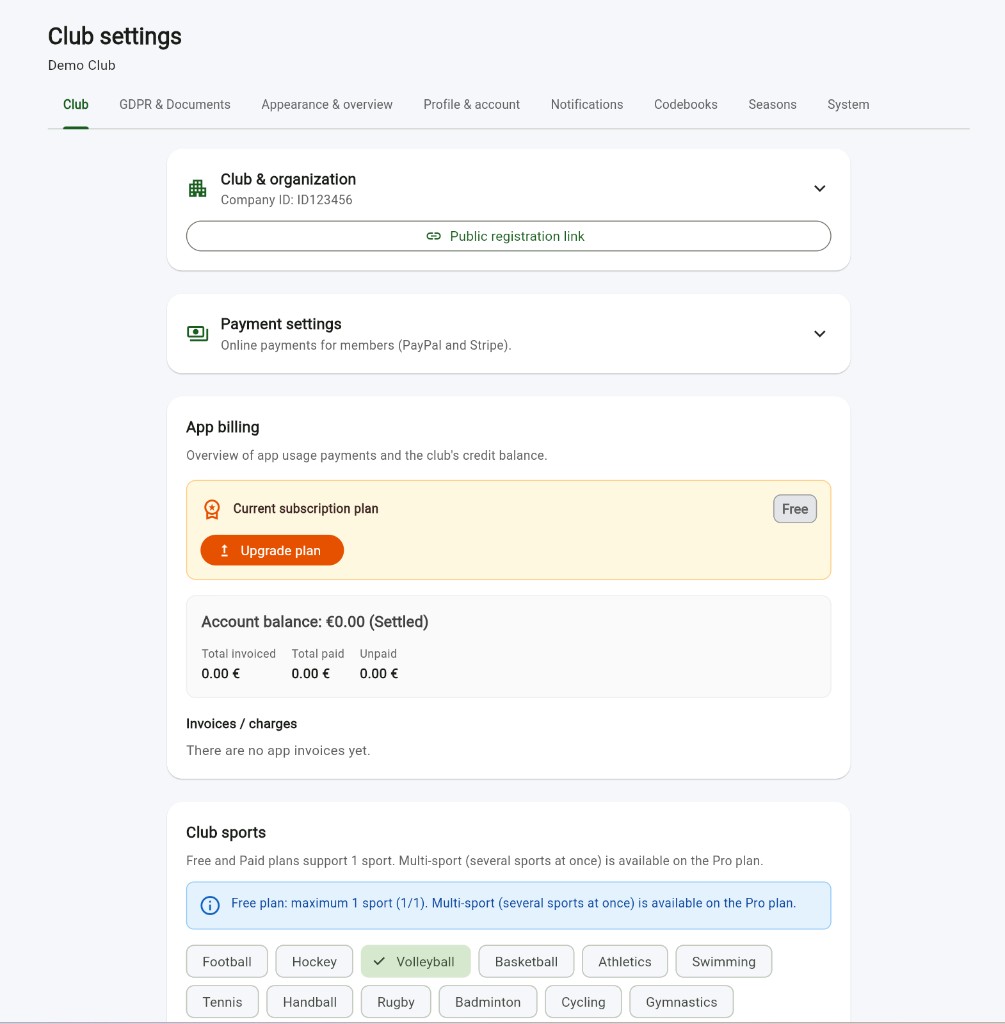
- Club & organization shows the organization name and ID. The screenshot shows Company ID: ID123456. The arrow on the right collapses and expands the card.
- Public registration link gives you the public link new members use to register.
- Payment settings is collapsed. The line says Online payments for members (PayPal and Stripe).
- App billing is the overview of the subscription and the club credit. The line under the heading says Overview of app usage payments and the club's credit balance.
- Current subscription plan shows a Free badge. The orange Upgrade plan button opens the move to a higher plan.
- Account balance shows €0.00 (Settled). Under it, Total invoiced, Total paid, and Unpaid are each 0.00 €.
- Invoices / charges says There are no app invoices yet.
- Club sports. The line under the heading says the Free and Paid plans support 1 sport, and several sports at once are on the Pro plan. The blue banner says Free plan: maximum 1 sport (1/1).
- The screenshot lists Football, Hockey, Volleyball, Basketball, Athletics, Swimming, Tennis, Handball, Rugby, Badminton, Cycling, and Gymnastics. Volleyball is selected, with a green background and a check mark.
2. GDPR and documents
The GDPR & Documents tab manages consents and legal documents. The screenshot shows the legal representative’s consent for processing and publishing photos and video recordings. The consent text box is empty.
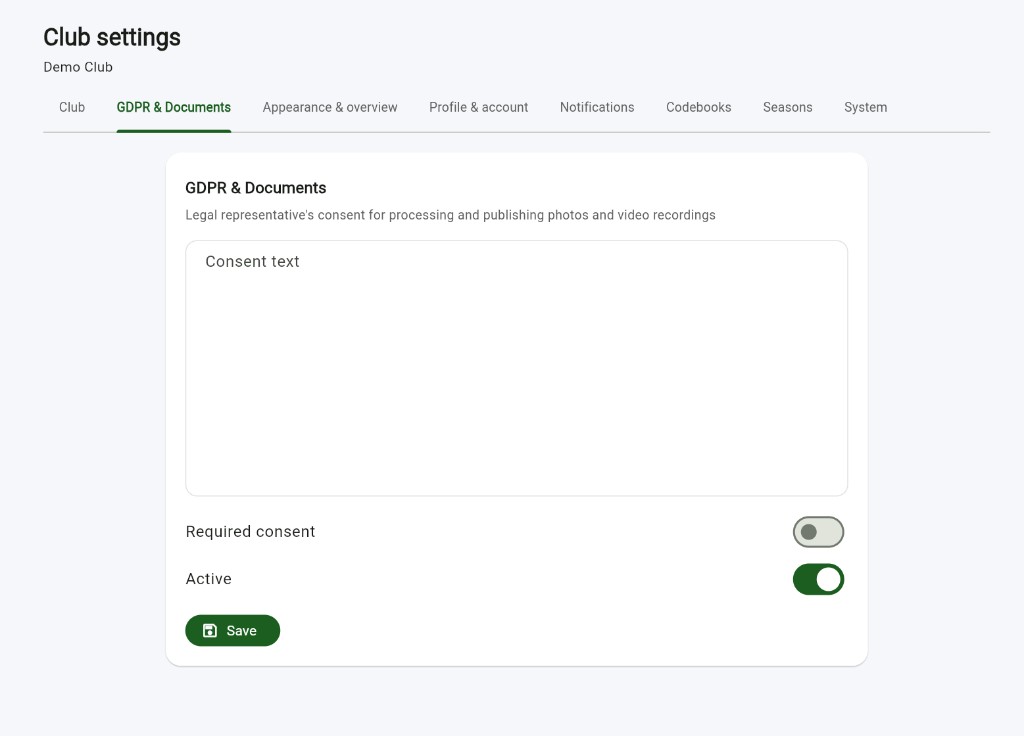
- Consent text is the box for the consent wording. This is where you put, for example, a legal representative’s consent to process personal data and to publish photos and videos.
- Required consent decides whether members must accept this consent. On the screenshot the switch is off.
- Active turns the consent on or off. On the screenshot the switch is on and green.
- The green Save button stores the text and both switches.
3. Appearance and overview
The Appearance & overview tab adjusts the dashboard and the interface. My view holds personal settings. The line under it says Personal account settings — apply to you across all clubs. On the screenshot every switch is on.
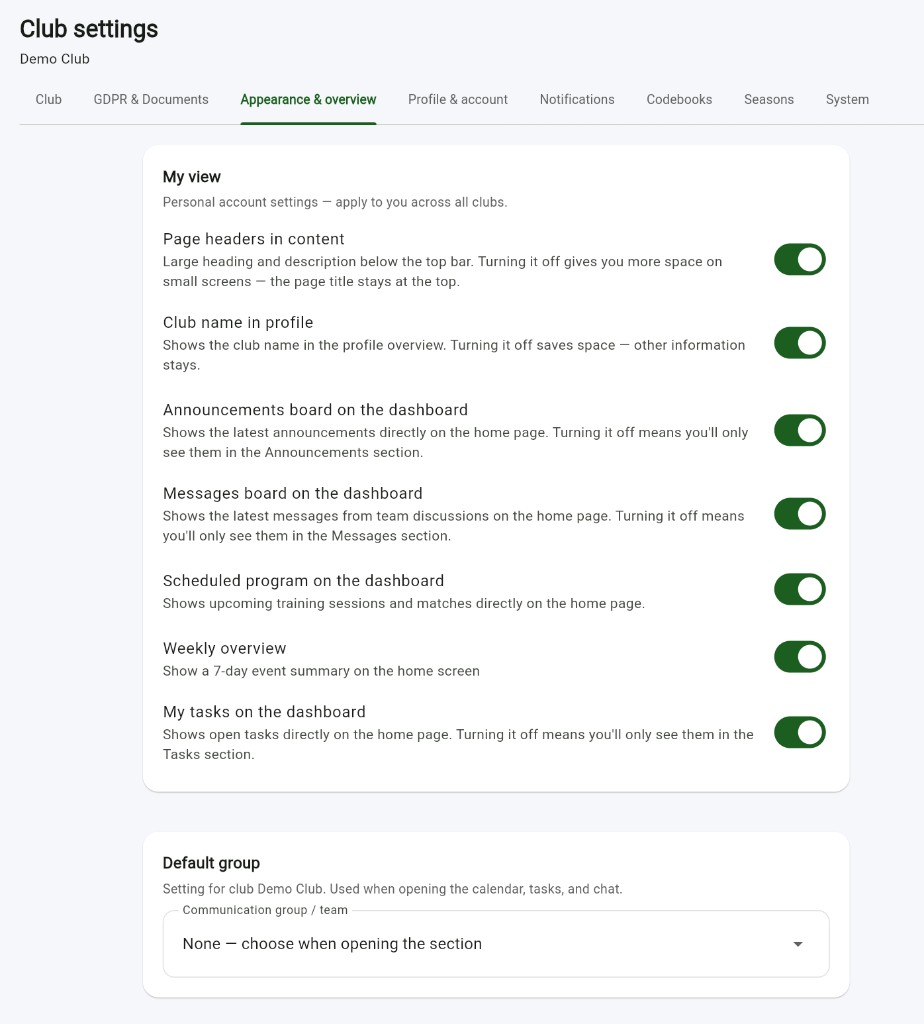
- Page headers in content shows the large heading and description below the top bar. Turning it off saves space on a small screen, and the page title stays at the top.
- Club name in profile shows the club name in the profile overview. Turning it off saves space, and the other details stay.
- Announcements board on the dashboard shows the latest announcements on the home page. With it off, you still find them in Announcements.
- Messages board on the dashboard shows the latest messages from team discussions on the home page. With it off, you still find them in Messages.
- Scheduled program on the dashboard shows upcoming training sessions and matches on the home page.
- Weekly overview shows a 7-day event summary on the home screen.
- My tasks on the dashboard shows open tasks on the home page. With it off, you still find them in Tasks.
- Default group is the setting for the club on the screenshot, Demo Club. It is used when you open the calendar, tasks, and chat. Communication group / team is set to None — choose when opening the section.
4. Profile and account
The Profile & account tab manages the signed-in user’s personal profile and security. The details on the screenshot belong to the sample account astix@astix.sk.
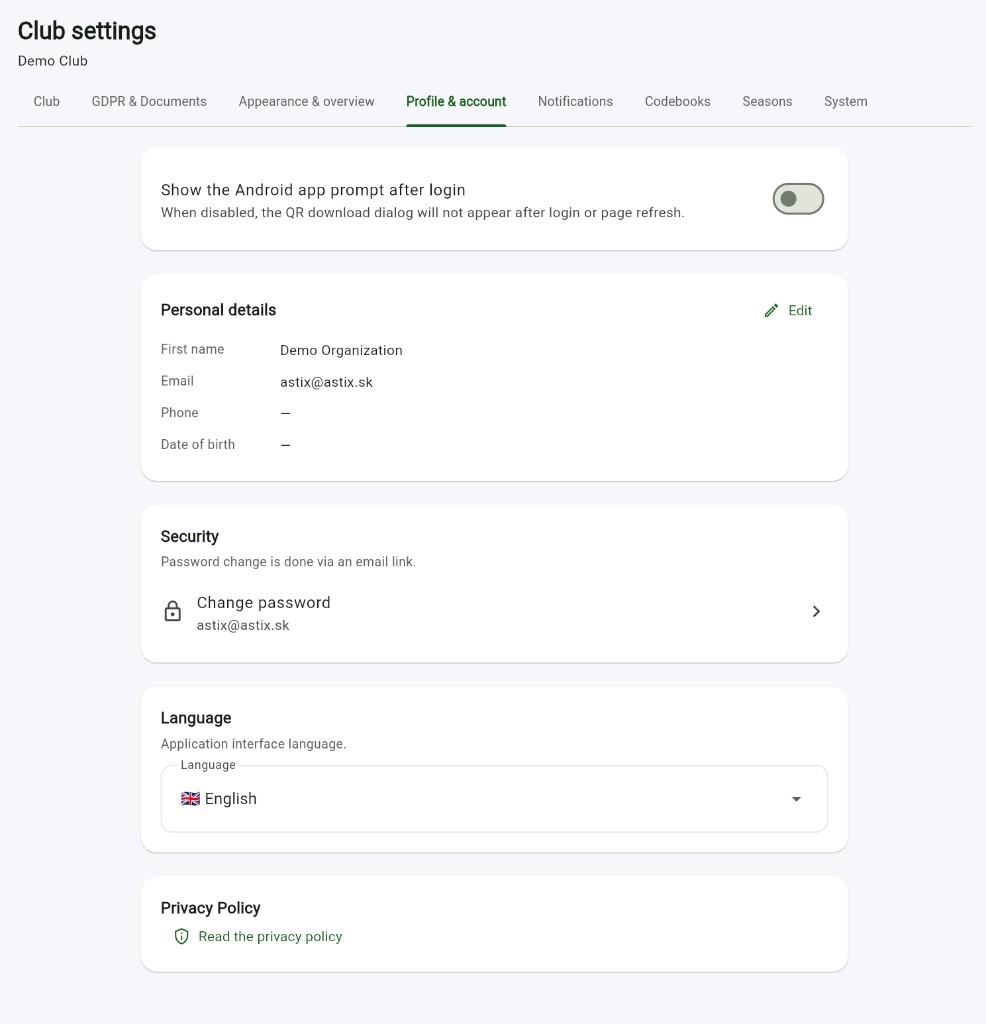
- Show the Android app prompt after login is off. The line under the switch says that, when it is disabled, the QR download dialog will not appear after login or a page refresh.
- Personal details shows First name Demo Organization, Email astix@astix.sk, and Phone and Date of birth as a dash. The Edit button at the top right opens the editor.
- Security. The line says password change is done via an email link. The Change password row shows astix@astix.sk. A click sends a password-reset link to that address.
- Language is the application interface language. The screenshot shows English with the British flag.
- Privacy Policy. Read the privacy policy opens the policy.
5. Notifications
The Notifications tab sets the Email and Mobile push channels. Automatic notifications are available to members on a paid plan. On the screenshot the switches are off.
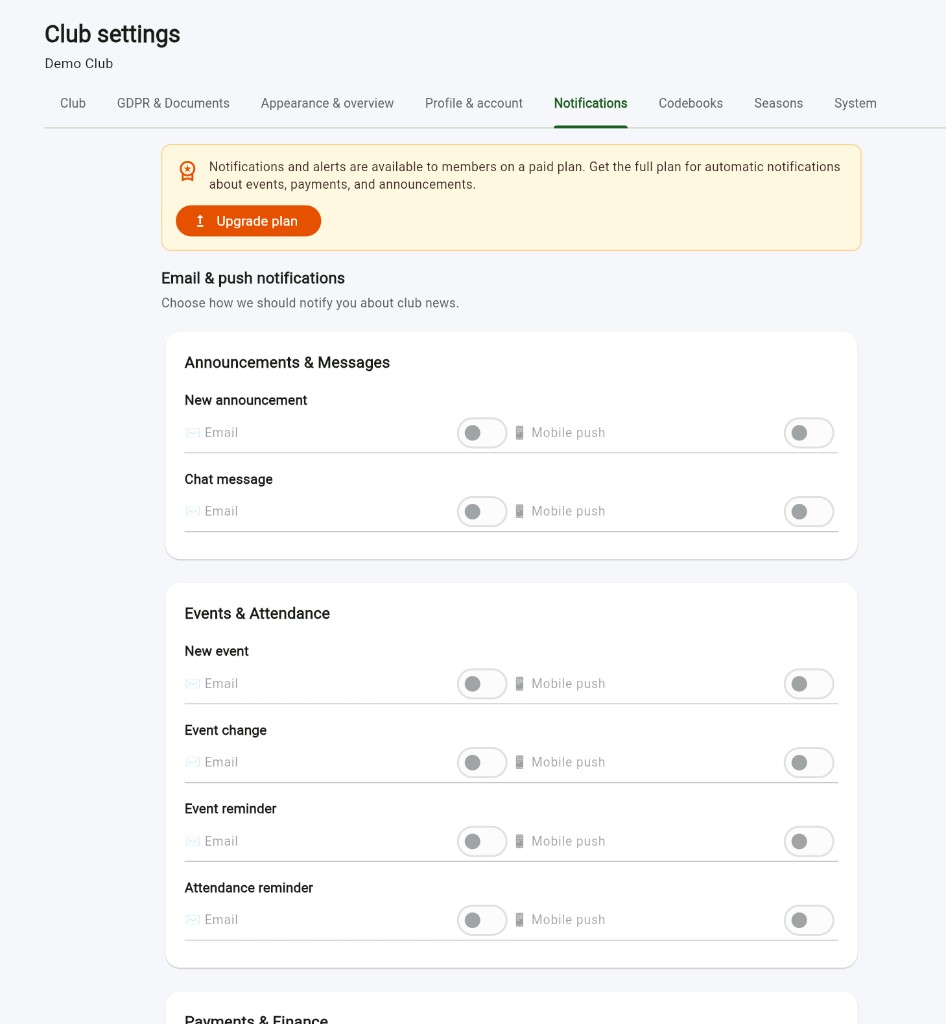
- The yellow banner says notifications and alerts are available to members on a paid plan, and that the full plan adds automatic notifications about events, payments, and announcements. The orange Upgrade plan button sits in the banner.
- Email & push notifications is followed by Choose how we should notify you about club news.
- Announcements & Messages contains New announcement and Chat message. Each row has an Email switch and a Mobile push switch.
- Events & Attendance contains New event, Event change, Event reminder, and Attendance reminder. Each row has Email and Mobile push.
- Payments & Finance is at the bottom of the screenshot. It covers alerts about payments and finance requests, again with Email and Mobile push.
6. Codebooks
The Codebooks tab manages cities, inventory categories, and training locations. The buttons + New city, + New category, and + New location add entries. The pencil edits an entry and the bin deletes it.
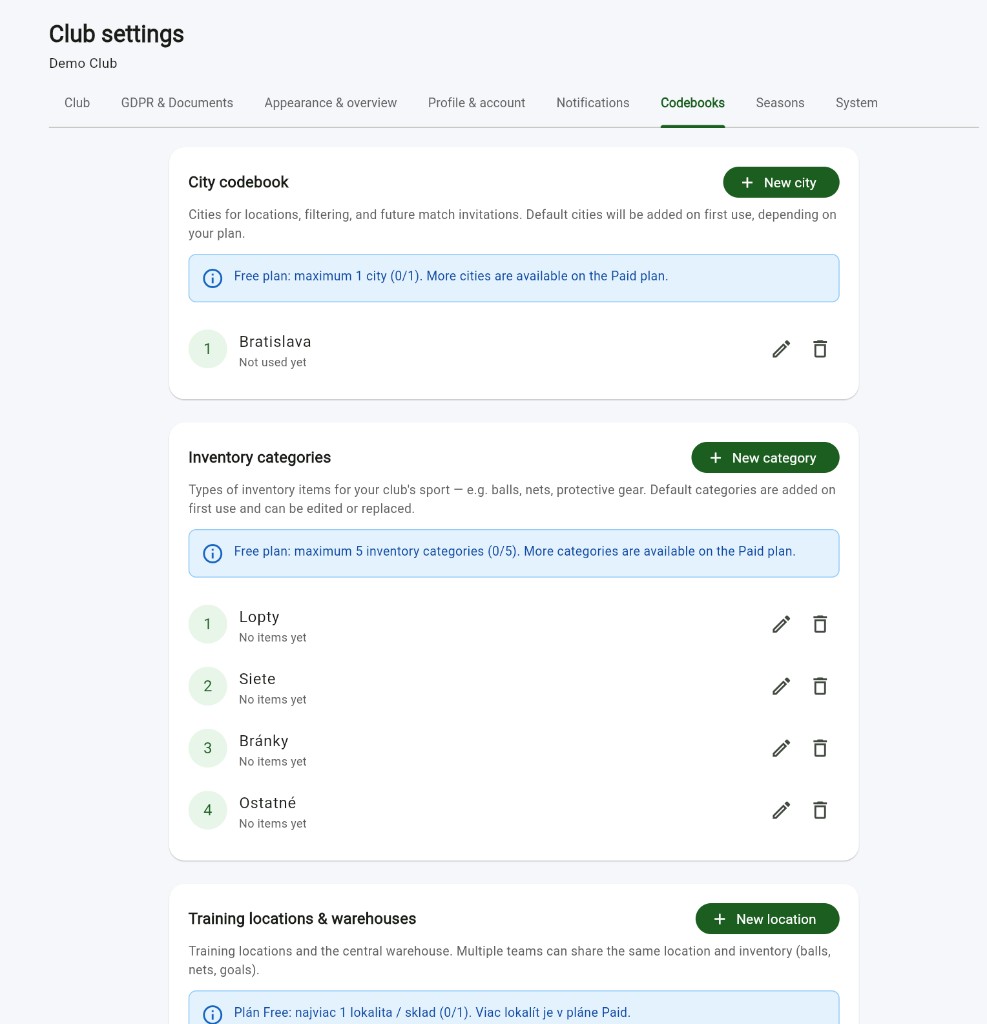
- City codebook lists cities for locations, filtering, and future match invitations. The text says default cities are added on first use, depending on your plan. The blue banner says Free plan: maximum 1 city (0/1). More cities are available on the Paid plan. The screenshot shows city 1, Bratislava, with the status Not used yet.
- Inventory categories are types of equipment, for example balls, nets, and protective gear. Default categories are added on first use and can be edited or replaced. The blue banner says Free plan: maximum 5 inventory categories (0/5). More categories are available on the Paid plan.
- The screenshot lists 1 Lopty, 2 Siete, 3 Bránky, and 4 Ostatné. Each row says No items yet. Those names are the Slovak defaults for balls, nets, goals, and other.
- Training locations & warehouses covers training places and the central warehouse. Several teams can share the same location and inventory, such as balls, nets, and goals. The limit banner on the screenshot is in Slovak: Plán Free: najviac 1 lokalita / sklad (0/1). Viac lokalít je v pláne Paid. It means the free plan allows 1 location or warehouse (0/1), and more locations are on the Paid plan.
7. Seasons
The Seasons tab manages the club’s sports seasons. The screenshot does not have a season yet.
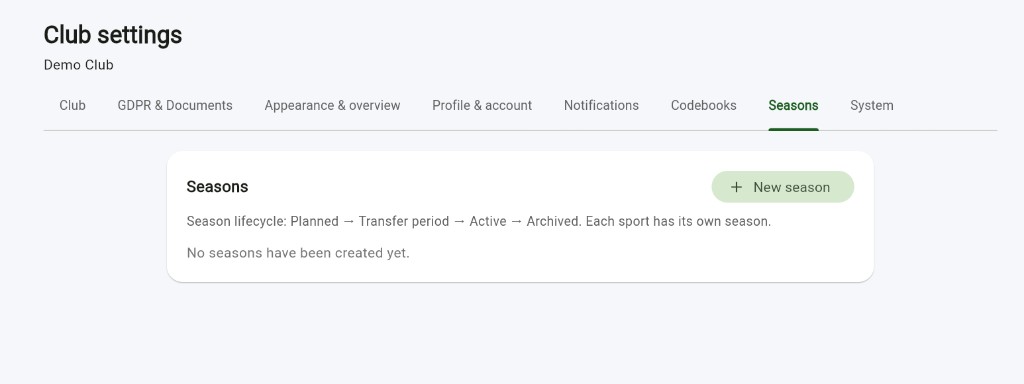
- The lifecycle line says Season lifecycle: Planned → Transfer period → Active → Archived. Each sport has its own season.
- The + New season button creates a new season for a specific sport.
- No seasons have been created yet is the empty state.
8. System settings
The System tab covers outgoing mail and the hours for daily automatic reminders. The mail cards are collapsed on the screenshot.
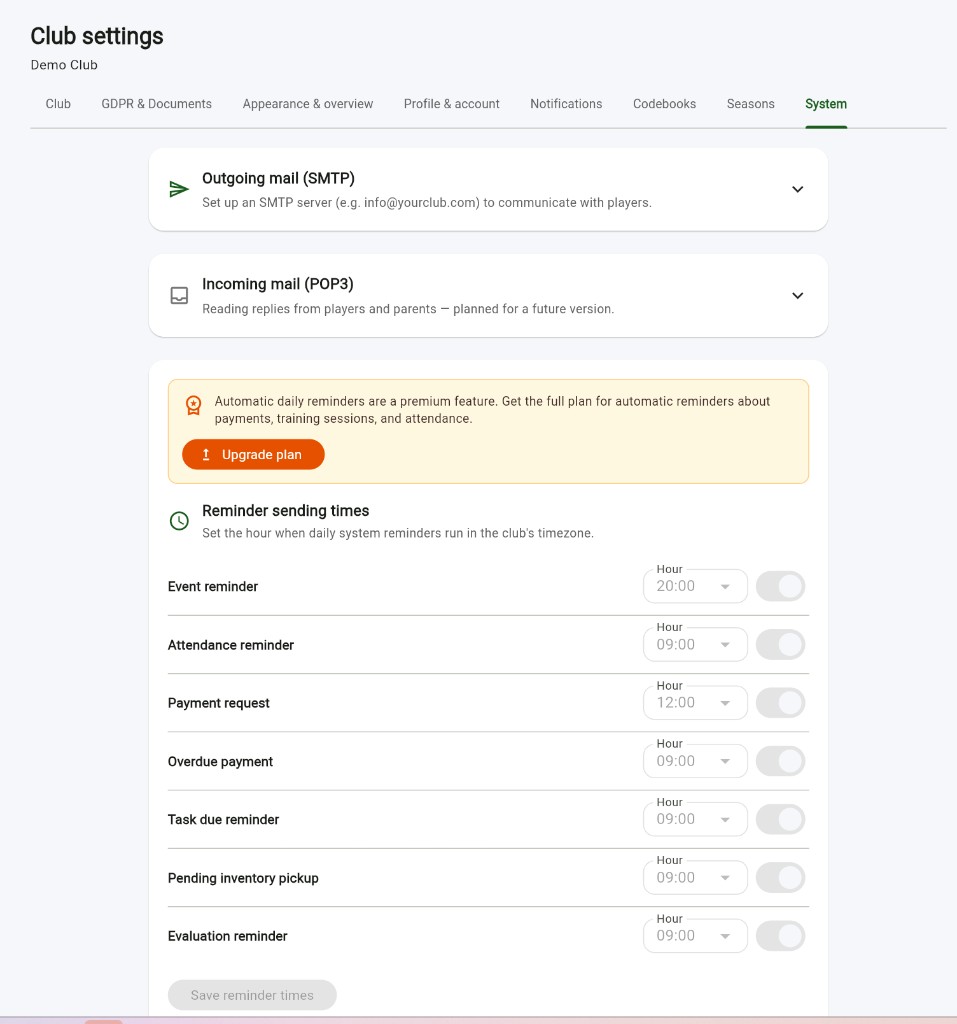
- Outgoing mail (SMTP) sets up your own SMTP server, for example info@yourclub.com, to write to players. The arrow on the right expands the card.
- Incoming mail (POP3) is for reading replies from players and parents. The line says planned for a future version.
- The yellow banner says automatic daily reminders are a premium feature, and that the full plan sends them for payments, training sessions, and attendance. The orange Upgrade plan button sits in the banner.
- Reminder sending times. The line under the heading says this is where you set the hour when daily system reminders run in the club’s timezone.
- On the screenshot, Event reminder is 20:00, Attendance reminder is 09:00, Payment request is 12:00, Overdue payment is 09:00, Task due reminder is 09:00, Pending inventory pickup is 09:00, and Evaluation reminder is 09:00. The switch on every row is off.
- Save reminder times stores the hours you set.