Manual
Signing in to the app
You reach the app from the home page at www.all4team.com with the Log in button, or straight at https://all4team.com/app/login. After a successful sign-in the overview opens, with the menu and the default cards. The screenshots show the English interface. If the site and the app are set to Slovak, the same fields and menu items appear in Slovak. The account on the screenshots is only the sample from registration.
1. Open the website and click Log in
Sign-in starts at www.all4team.com. The screenshot shows the home page in the browser, with the Log in button under the headline highlighted in yellow.
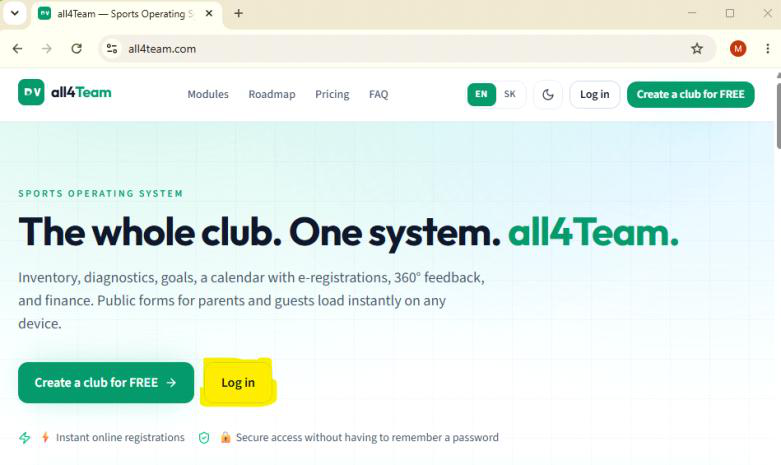
- The address bar shows all4team.com. The browser tab title starts with all4Team — Sports Operating System.
- The header has Modules, Roadmap, Pricing, and FAQ, the EN/SK language switch, the light and dark mode switch, Log in, and the green Create a club for FREE button.
- Log in in the header and Log in under the headline both open the same sign-in screen. Create a club for FREE starts a new club. It does not sign you in.
- The headline reads The whole club. One system. all4Team.
- Under it, the text covers inventory, diagnostics, goals, a calendar, 360° feedback, and finance, and says public forms for parents and guests load instantly on any device.
- Under the buttons are two lines: Instant online registrations, and Secure access without having to remember a password. Those describe the parent portal, not an administrator sign-in.
2. Fill in the sign-in form
The same screen opens when you click Log in, and when you go straight to https://all4team.com/app/login. The heading is Sign in.
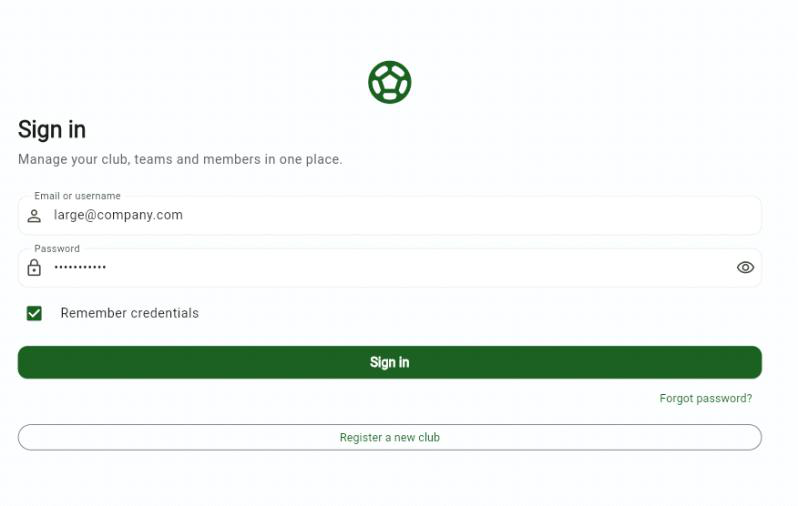
- A green ball logo sits above the form.
- Under the heading it says Manage your club, teams and members in one place.
- Email or username — the screenshot shows large@company.com, the sample sign-in email from registration, not the billing email.
- Password — the password from registration. On the screenshot it is hidden as dots. The eye icon on the right reveals it for a moment.
- Remember credentials is checked. Sign-in stays stored in this browser. On a shared computer, leave the box unchecked.
- The green Sign in button submits the login.
- Forgot password? is for recovering the password when you do not know it.
- Register a new club takes you back to creating another club. You do not need it to enter a club that already exists.
3. The overview opens with the menu
After sign-in the Overview page opens. The menu is on the left and the default cards of a new club are on the right. The screenshot shows the account Admino Large, the role Club admin, and the sport Volejbal.
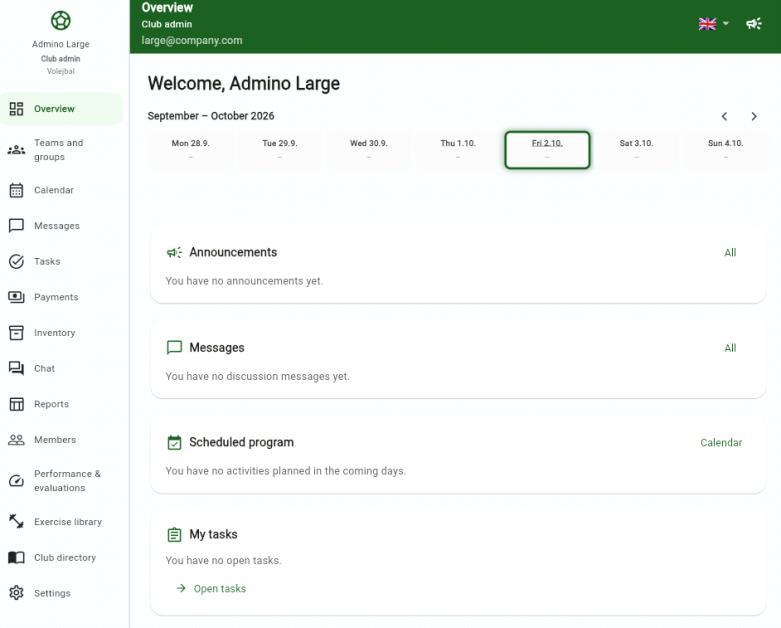
- The green bar at the top says Overview, then Club admin and the email large@company.com. On the right are the language switch with the British flag and the profile icon.
- Under the logo on the left are the name Admino Large, the role Club admin, and the club sport Volejbal. In English that sport is Volleyball. The name in the menu is the one you chose at registration.
- The selected menu item is Overview, with a light green background. The other items are Teams and groups, Calendar, Messages, Tasks, Payments, Inventory, Chat, Reports, Members, Performance & evaluations, Exercise library, Club directory, and Settings.
- The heading on the right is Welcome, Admino Large.
- Under it is the week September – October 2026. The days run from Mon 28.9. to Sun 4.10. Today, Fri 2.10., has a green outline. The arrows on the right move the week.
- The Announcements card says You have no announcements yet. The All link opens the full list.
- The Messages card says You have no discussion messages yet. The All link opens messages.
- The Scheduled program card says You have no activities planned in the coming days. The Calendar link opens the calendar.
- The My tasks card says You have no open tasks. The Open tasks link opens tasks.
- Empty cards are the default state of a new club. They are not a sign-in error.